
Phone system
Make a queue
- Open Queues → + New queue.
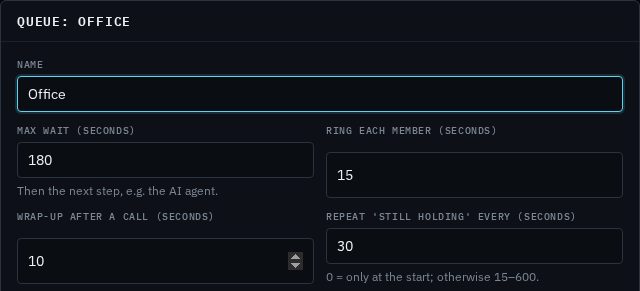
- Give it a Name, such as "Office".
- Set Max wait (seconds), Ring each member (seconds), Wrap-up after a call (seconds) and Wait between recordings (seconds). The starting values suit most businesses; see Options explained.
- Choose the Music on hold, and if you like your own Recording when the caller joins and Recording while they wait.
- Click Save.
- Click the new queue in the list, then add its members from Add a member…. See Members.
What the caller hears
- The queue answers and the caller hears a short message asking them to hold, then music.
- A recording plays as they join, and another after each wait you choose. Recordings play over the music while the queue keeps ringing your team, so whoever answers cuts the recording short.
- When a member is free, their phone rings. The caller keeps hearing music until the member picks up.
- If that member doesn't answer, the next free member is tried.
- If nobody has answered by the Max wait, the call moves to the next step in your call routing, such as voicemail or your AI agent.
The person who has taken the fewest calls from the queue is tried first, then whoever has been free the longest. Members ring one at a time, never all together.
Options explained
- Max wait (seconds)
- The longest a caller waits before the call moves on to the next step in your call routing. Between 5 and 3600 seconds (an hour).
- Ring each member (seconds)
- How long one member's phone rings before the next free member is tried. Between 5 and 120 seconds.
- Wrap-up after a call (seconds)
- A breather after each queue call, so a member can finish their notes before the next call rings. Between 0 and 600 seconds.
- Wait between recordings (seconds)
- How long after one recording ends the next one plays. 0 plays only the first recording; otherwise 15 to 600 seconds.
- Recording when the caller joins
- What callers hear first. The built-in one says "please hold"; you can pick one of your own recordings instead.
- Recording while they wait
- What callers hear after each wait. The built-in one says they're still holding; you can pick one of your own. Choose Upload a recording… in the list to add one right there, or upload on the Music on hold tab.
- Service level (seconds)
- The answer time you aim for. The stats count the calls answered within it. Between 5 and 600 seconds; 20 to start with.
- Managers
- The people who look after this queue. They see it live in their web phone, with its stats, and can pick a waiting caller up. See Queue managers.
- Music on hold
- What callers hear while they wait. The default is your business's usual hold music; you can pick another track. Manage tracks on the Music on hold tab. See Music on hold.
Members
Members are the phones that take calls from the queue. Click a queue in the list to see its members on the left and the callers waiting on the right.
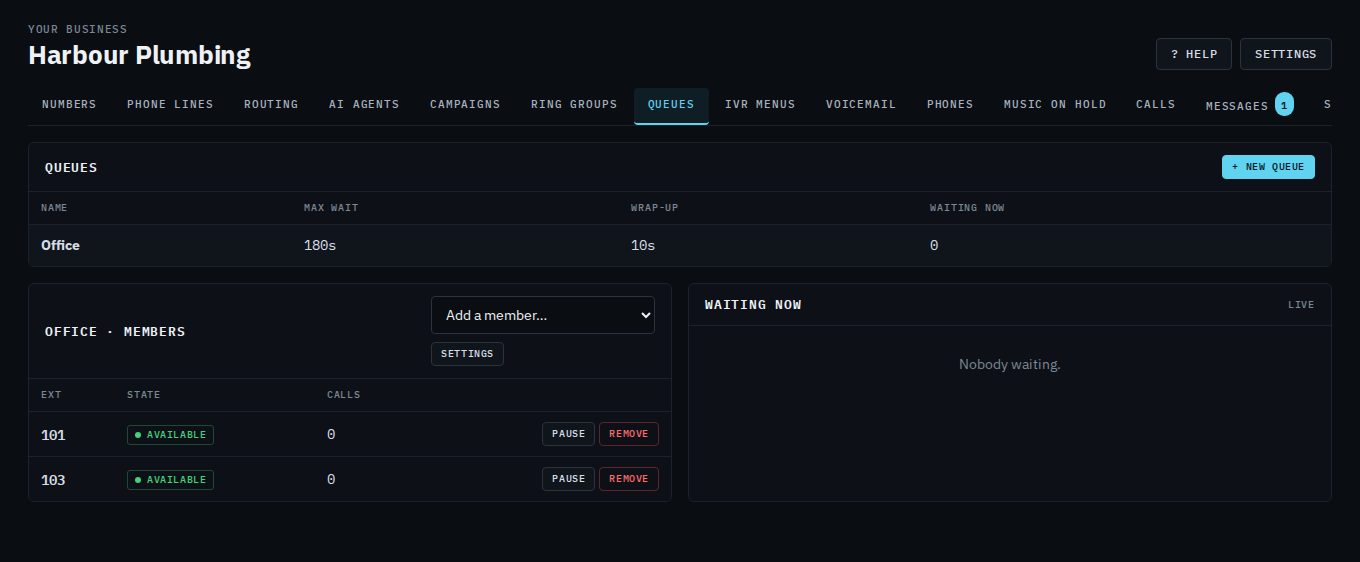
- Add a member: pick an extension from Add a member…. It's added straight away.
- Pause a member: click Pause when someone steps away, and Unpause when they're back. Paused members aren't offered calls but stay in the queue.
- Remove a member: click Remove.
- Change the queue's settings: click Settings.
The State column shows what each member is doing:
- Available
- Free and ready for the next call.
- On a queue call
- Their phone is ringing for a queue caller, or they're talking to one.
- On another call
- On a call that didn't come from this queue.
- Wrap-up
- Just finished a queue call; they'll be offered calls again after the wrap-up time.
- Do not disturb
- They turned on do not disturb in their web phone or app; not offered calls.
- Away
- They set themselves as away. They're still offered calls; pause them if they shouldn't be.
- Paused
- Paused from this page; not offered calls.
- Logged out
- Their phone isn't signed in, so it can't ring.
The Calls column counts the queue calls each member has taken.
See who's waiting
The Waiting now panel updates every few seconds. For each caller it shows their position in the line, their number, how long they've been waiting, their priority, and whether they're on hold, ringing a member, or being picked up by a manager. Above it is today's count of calls offered, answered, and hung up while waiting. The Waiting now column in the list of queues shows the same count for every queue.
Queue managers
A queue manager is a person who looks after a queue, such as a team leader. They don't have to be a member.
- Click the queue, then Settings.
- Under Managers, tick the people who look after it. People are added on the Team tab.
- Click Save.
Managers get a Queues tab in their web phone. It shows each queue they manage, live: who is waiting and for how long, what each member is doing, and today's numbers. A number on the tab shows how many callers are waiting.
Pick a caller up
A manager can take a particular caller straight away, ahead of the line, for example a caller who has waited too long.
- Open the Queues tab in the web phone.
- Click Pick up next to the caller.
- Your phone rings with that caller next. Answer it as usual.
- Your phone rings on the line chosen in From, if you have more than one.
- If a member's phone is already ringing for that caller, it rings out first (or the member answers), then yours rings. Two phones never ring for one caller.
- If you don't answer, the caller stays where they were in the line and the queue carries on.
- Only the queue's managers can pick its callers up, and not while they're on a call.
- The call's history shows who picked the caller up.
Queue stats
Admins see a queue's stats under its live view; managers see them on the Queues tab. Choose Today, Yesterday, Last 7 days, Last 30 days or your own dates. Days follow your business's time zone. Export CSV downloads the same numbers for a spreadsheet.
- Offered
- Calls that came into the queue. A call that comes back into the queue (for example, transferred back) counts once.
- Answered
- Calls a member or a manager answered, and how many a manager picked up.
- Missed
- Calls the queue didn't answer: callers who hung up while waiting (and how many within 5 seconds, often a wrong number), and calls that overflowed to the next step in your call routing after the max wait or because nobody was available.
- Wait to answer
- The average and longest time answered callers waited in the queue.
- Service level
- The share of calls answered within the queue's service level. Callers who hung up within 5 seconds are left out.
- Talk time
- The average time from answer to the end of the call.
- Per member
- Calls each person answered, their talk time, and how many times their phone rang for a queue caller and wasn't answered.
Send calls to a queue
- Straight from your number
- On the Numbers tab, choose the queue under What answers. See Your numbers.
- As a step in your call routing
- On the Routing tab, add a Queue step. The step can have its own Wait at most (seconds) (leave it empty to use the queue's max wait) and a Priority (0–10): callers with a higher priority are answered first. Connect what happens if nobody answers in time. See Routing steps.
Queue or ring group?
- Ring group
- Rings phones (together or in turn) for a set time, then moves on. The caller hears ringing. Good when someone can usually answer straight away. See Ring groups.
- Queue
- Answers the caller and holds them with music and messages until someone is free, sharing calls fairly between members. Good when calls can arrive together and waiting a minute or two is fine.
Delete a queue
Click the queue, click Settings, then Delete queue, and confirm. Check the Numbers and Routing tabs first for anything that sends calls to it.
Related
Still stuck? Contact us and tell us which page you were on.