
Calls and messages
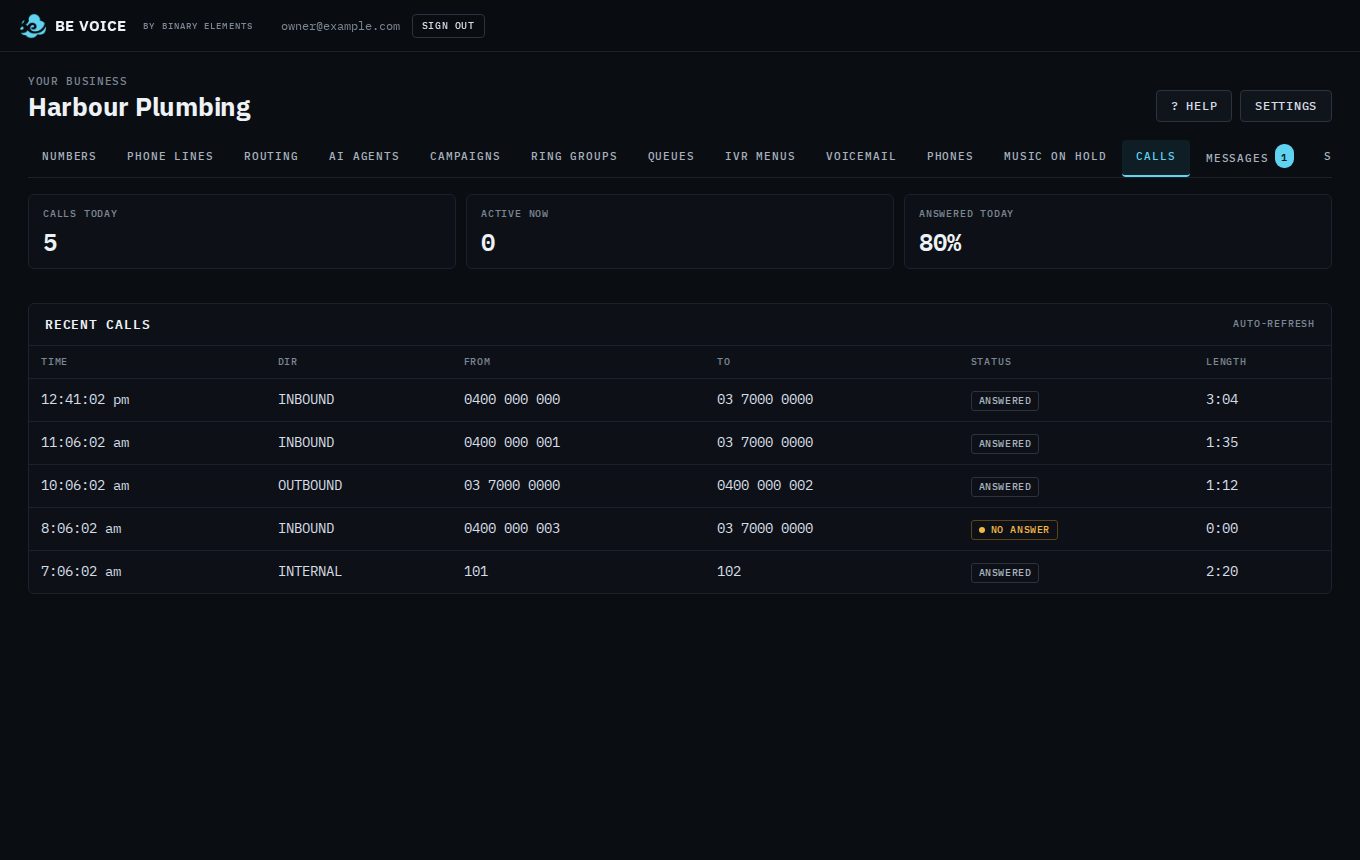
Today at a glance
- Calls today
- How many calls there have been since midnight, in every direction.
- Active now
- Calls in progress right now.
- Answered today
- The share of today's calls that were answered, by a person or by your AI agent.
Recent calls
The table lists your most recent 100 calls, newest first. It refreshes by itself every few seconds, so you can leave it open.
Click a column heading to sort by it; click it again to reverse the order. All, In, Out and Internal next to the search box show only calls going that way. Sorting and these buttons apply to the calls listed, including search results.
- Time
- When the call started.
- Dir
- INBOUND for calls to your numbers, OUTBOUND for calls your phones or your campaigns made, and INTERNAL for calls between your own extensions.
- From and To
- The phone numbers or extensions at each end.
- Status
- Live while the call is going. After that, Answered for a call that was answered, or No answer, Busy, Didn't connect or Hung up before answer when it didn't connect. Open the call to see why, for example "No answer: nobody answered".
- Length
- How long the call lasted.
Find a call
Type in the search box above the table. The list shows the calls that match from the last 90 days, newest first. You can search for:
- A phone number, written any way: 0400 000 000, +61400000000 or just 400000000. Part of a number works too.
- Anything in a call's timeline: a person's name (Patricia), a queue or ring group (Support), or what happened (transfer, hold, voicemail).
Clear the box to see your recent calls again.
How to open a call
- Open Calls.
- Click the call in the Recent calls table.
- Read the details, play the recording, then click Close.
You can also open a call from the Call button on a message in the Messages tab, or by clicking a person in a campaign's results.
What you'll see on a call
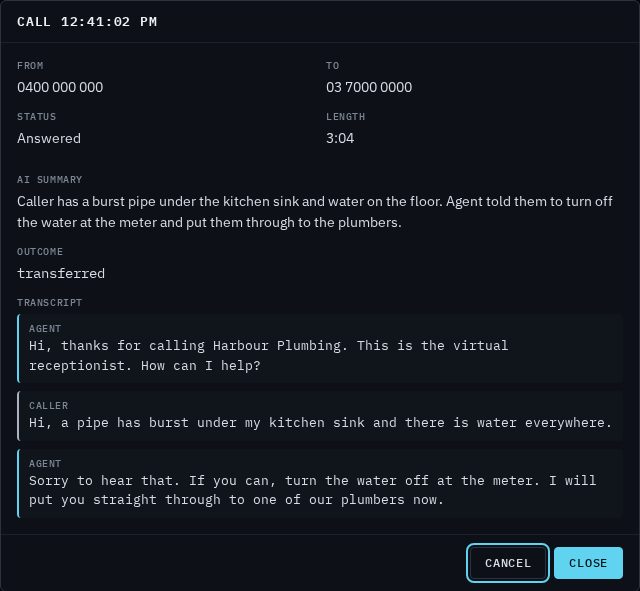
- From, To, Status and Length
- Who called whom, how the call ended and how long it took.
- Recording
- A player to listen to the call, and Download WAV to save the audio file. It appears only when the call was recorded.
- Timeline
- Everything that happened on the call, step by step, with the time since it started. See The call timeline below.
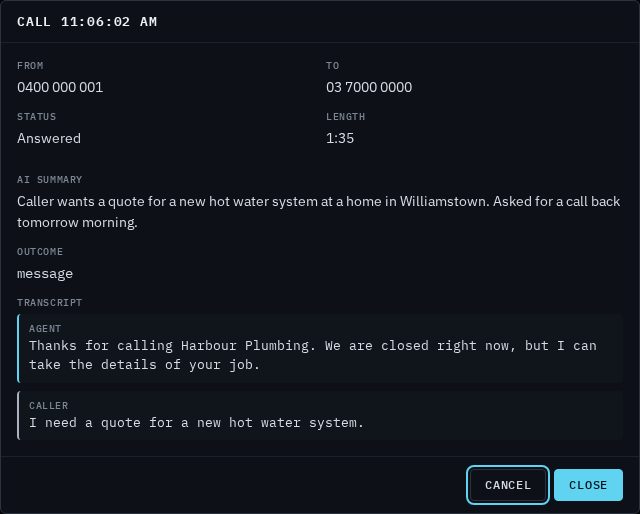
- AI summary
- For calls your AI agent handled: a few sentences on what the caller wanted and what the agent did about it.
- Outcome
- How the AI agent's part of the call ended. For example, transferred means it put the caller through to someone, and message means it took a message for you.
- Result
- For agents whose script lists outcomes (such as campaign agents), the outcome it chose, any details it recorded with it, and its note.
- Message taken
- When the agent took a message, the details it collected. The message also goes to the Messages tab.
- Transcript
- The whole conversation, line by line, marked Agent and Caller.
The call timeline
Each line is one step, with the time since the call started (00:08 is eight seconds in). The grey line under it gives the details.
- Call from / Call placed to
- The call came in to one of your numbers, or one of your phones, the API, a campaign or a fax made it.
- Routed to
- The step of your call routing that took the call: a ring group, a queue, a menu, an AI agent, a divert, voicemail or an extension, and which rule chose it.
- Pressed / No key pressed
- What the caller chose in a menu.
- Entered queue / Left queue
- The caller waited in a queue, and why they left it: answered, hung up, timed out or sent on to the next step.
- Rang / Woke … 's app
- Whose phone rang, on which kind of phone (desk phone, web phone or app), and for how long. An app that was asleep is woken first.
- Didn't answer
- Why someone didn't take the call: no answer, busy, declined, do not disturb, or not signed in.
- Forwarded
- The call was sent on: by a desk phone's own forward, or by the person's call rules (the reason shows next to it: do not disturb, away, busy or no answer).
- Answered by
- Who took the call and on which phone.
- Put the call on hold / Took the call off hold
- Someone pressed Hold on their phone, and when they came back.
- Transferred the call to
- Who sent the caller on, to whom, and whether they spoke to that person first. The rest of the call shows as Leg 2, Leg 3 and so on.
- AI agent
- Your AI agent took the call, handed it to someone, or ended it, and how.
- Started to listen
- A supervisor listened in, whispered, joined or took over.
- Voicemail left / Recording started
- The caller left a message, and how long it is; the call is being recorded.
- Call ended
- How it ended and how long people talked.
When a queue offers a call to many people, those lines are folded into Offered to 5 people. Click Expand to see each one.
Recording and transcripts
Calls your AI agent answers always come with a summary and transcript. Whether other calls are recorded and transcribed is up to you, in Settings → Calls:
- Record calls records both sides of your calls, including calls between your phones and calls transferred to an extension.
- Transcribe recorded calls turns each recording into text a few seconds after the call ends, so you can read calls between people too. A call transcribed this way has a transcript but no AI summary or outcome.
- Tell callers the call may be recorded plays a short notice at the start of each call.
Recordings are deleted automatically after a set number of days. You'll find how long they're kept under Settings → Calls. Download any recording you need to keep for longer. See Settings.
Related
Still stuck? Contact us and tell us which page you were on.